

In LaTeX, the Table of Contents (ToC) is very important for long documents. By default, it comes with a fixed title like Contents or Table of Contents.
This tutorial explains the main methods to change the ToC title in a clear and simple way.
Default renewcommand
This is the most basic method. It works directly with the standard classes like report, book, and article.
If you only want to rename the title without touching design, this is the right choice.
\renewcommand{\contentsname}{New Title}
-
\renewcommandUsed when you need to replace an existing LaTeX command with a new one. It is the simplest way to redefine macros.
-
\contentsnameHolds the default title text for the ToC. Changing it directly changes what title is displayed.
-
{New Title}Here you can insert your custom heading, such as “Outline”, “Summary”, or anything else you prefer.
\documentclass{article}
\usepackage{lipsum} % for dummy text

\renewcommand{\contentsname}{My Outline}

\begin{document}
\tableofcontents

\vspace{2em} % for vertical space

 \lipsum[1][1-4]
\section{Introduction}
  \lipsum[2][1-3]
\section{Main Content}
  \lipsum[3][1-3]

\end{document}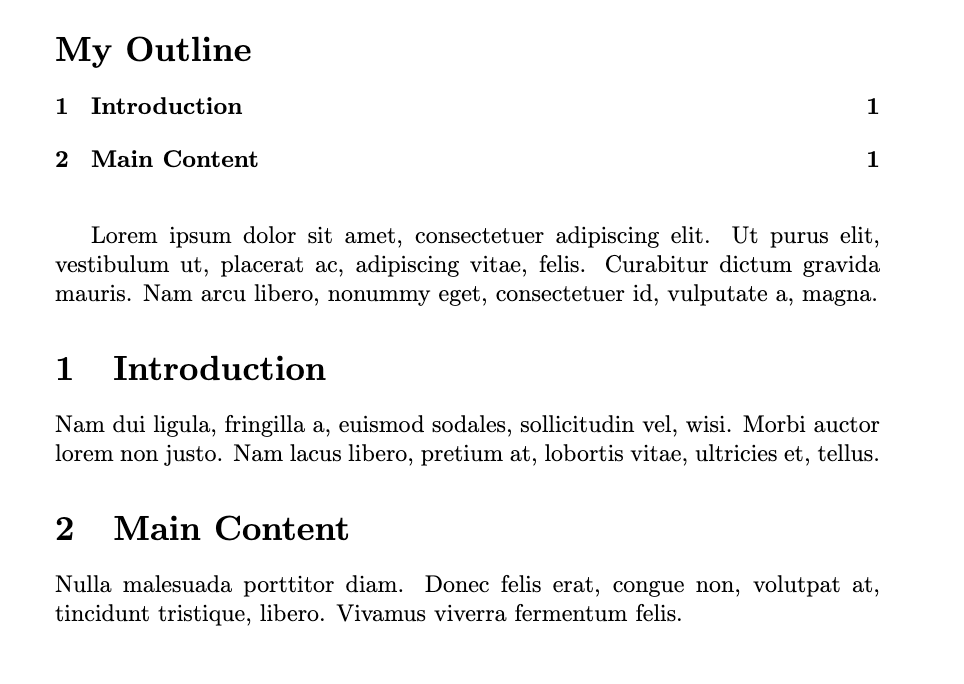
Using Babel package
When you use the babel package, the Table of Contents title can change depending on language.
This is useful for multilingual documents where each language has a different heading.
\addto\captionsenglish{\renewcommand{\contentsname}{Outline}}
-
\addtoLets you extend or add new definitions to LaTeX settings. With it you can apply changes conditionally.
-
\captionsenglishThis part ensures the change affects only the English language captions, keeping other languages untouched.
-
\renewcommand{\contentsname}{Outline}Redefines the default caption so that the TOC appears with the new word “Outline”.
\documentclass{report}
\usepackage[english]{babel}

\addto\captionsenglish{\renewcommand{\contentsname}{Outline}}

\begin{document}
\tableofcontents
\chapter{Intro}
\section{Test Section}
\end{document}
Using tocloft Package
The tocloft package allows you to customize both the title and its style.
You can make it bold, larger, or add spacing. This gives you more control than the default method.
\renewcommand{\cfttoctitlefont}{\Huge\bfseries}
\renewcommand{\contentsname}{My Custom ToC}
-
\cfttoctitlefontControls the style of the ToC title. You may change font size, weight, or shape by redefining it.
-
\Huge\bfseriesApplies very large text size and bold styling. Other variations like italics or small caps are also possible here.
-
\contentsnameStill works as the text container for the Table of Contents title. You can assign any label you prefer.
\documentclass{report}
\usepackage{tocloft}

\renewcommand{\cfttoctitlefont}{\Huge\bfseries}
\renewcommand{\contentsname}{My Custom ToC}

\begin{document}
\tableofcontents
\chapter{Intro}
\section{Test Section}
\end{document}
Using etoc Package
The etoc package gives complete control over the TOC.
You can easily set a custom title, and even design how the entries appear.
\etocsettocstyle{\section*{Custom Outline}}{}
-
\etocsettocstyleDefines the style of the ToC by setting what should appear before and after it. The first argument is the title, and the second is optional closing content.
-
\section*{Custom Outline}Adds a custom section heading as the title of the ToC, without including it in the ToC list itself.
-
{}Keeps the ending part empty, but you could also add text or formatting after the ToC if needed.
\documentclass{report}
\usepackage{etoc}

\etocsettocstyle{\section*{Custom Outline}}{}

\begin{document}
\tableofcontents

\chapter{Introduction}
\section{Background}
\section{Goals}

\chapter{Methods}
\section{Approach}
\section{Results}
\end{document}
Best Practice
If your document is simple, the default method with \renewcommand is enough.
For multilingual work, babel is the best choice because it handles language-specific settings.
If you need more control over size and style, tocloft package is a best solution.


