

When we want to show code or text exactly as written in LaTeX, we need a code block. Many times students, teachers, or developers want to include code in a document. Writing in normal text does not look good.
So, we will see all methods, from basic to advanced, with color options.
Table of Contents
Verbatim Environment
The most basic way to show code in LaTeX is using the verbatim environment. It keeps everything exactly as you type, including spaces, symbols, and line breaks.
It does not add colors or line numbers, but it’s perfect for very small code snippets.
\begin{verbatim}
........
........
\end{verbatim}
\documentclass{article}
\begin{document}

\begin{verbatim}
# Python: Check Even or Odd Numbers

for i in range(1, 11):
    if i % 2 == 0:
        print(f"{i} is Even")
    else:
        print(f"{i} is Odd")
\end{verbatim}

\end{document}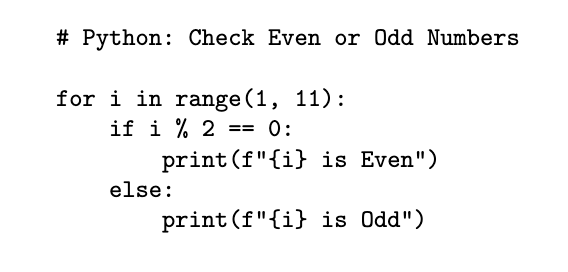
Alltt Environment
Sometimes you may want code-like text but still allow a few LaTeX commands inside. In that case, alltt is helpful.
It looks like verbatim, but commands such as \textbf or \textit will still work.
\begin{alltt}
This is code-like text.
But here \textbf{bold} works.
\end{alltt}
-
\begin{alltt} ... \end{alltt}This environment prints code-like text, but some basic LaTeX commands such as bold or italic still work inside it.
\documentclass{article}
\usepackage{alltt}
\begin{document}

\begin{alltt}
# {\bf Simple Greeting Program}
name = \textit{"Olivia"}
for i in range(3):
    print(f"Hello, \textit{{\{name\}}}! Count: {i+1}")
\end{alltt}

\end{document}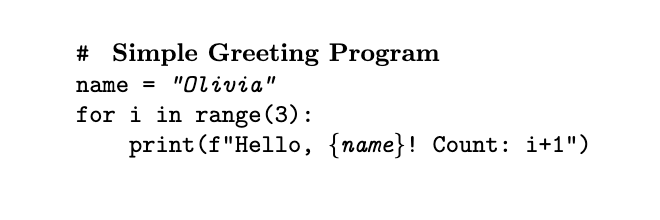
Fancyvrb Package
Imagine you liked verbatim but wished it looked nicer, maybe with line numbers, a frame, or even colored text.
That’s when fancyvrb comes in handy. It gives you more control and style.
\begin{Verbatim}[fontsize=\small, frame=single, numbers=left, formatcom=\color{blue}]
.........
.........
\end{Verbatim}
-
frame=singleAdds a box around the code block.
-
numbers=leftShows line numbers on the left side.
-
formatcom=\color{blue}Colors all the text inside the block in blue.
\documentclass{article}
\usepackage{fancyvrb}
\usepackage{xcolor}
\begin{document}

\begin{Verbatim}[fontsize=\small, frame=single, numbers=left, formatcom=\color{blue}]
def square(n):
    return n * n

nums = [1, 2, 3, 4]
for i in nums:
    print(f"Square of {i} is {square(i)}")
\end{Verbatim}

\end{document}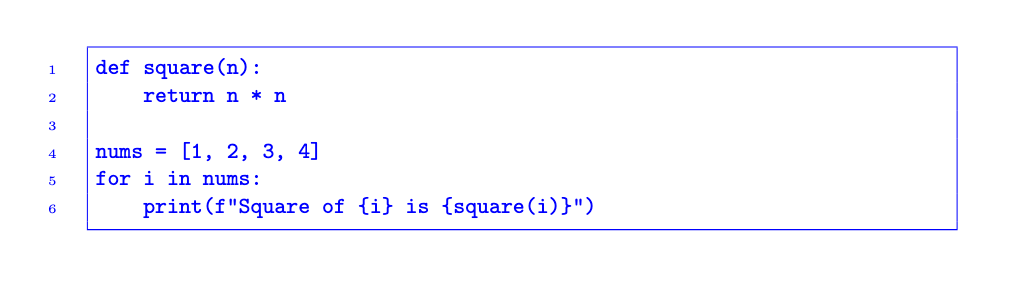
Listings Package
Now let’s say you want real programming style: keywords in blue, comments in green, and strings in red. That’s exactly what the listings package is designed for.
It supports many programming languages and makes your code blocks look professional.
\begin{lstlisting}[language=Python, caption=Sample Python Code, keywordstyle=\color{blue}, commentstyle=\color{green}, stringstyle=\color{red}]
.......
.......
\end{lstlisting}
-
\begin{lstlisting}[arg]...The
lstlistingenvironment shows code with custom formatting. Here, options are used to set the language, add a caption, and color different code elements such as keywords, comments, and strings. -
caption=Sample Python CodeAdds a caption under the code block with the text Sample Python Code. This is useful when you want to label or reference code listings.
-
keywordstyle=\color{blue}Formats Python keywords (like
def,for,if) in blue. -
commentstyle=\color{green}Formats comments (text after
#) in green. -
stringstyle=\color{red}Formats text inside quotes (strings) in red.
\documentclass{article}
\usepackage{listings}
\usepackage{xcolor}
\begin{document}

\begin{lstlisting}[language=Python, caption=Function with Loop, keywordstyle=\color{blue}, commentstyle=\color{olive}, stringstyle=\color{red}]
# Function to calculate cube
def cube(n):
    return n ** 3

# Print cubes from 1 to 5
for i in range(1, 6):
    print(f"Cube of {i} is {cube(i)}")
\end{lstlisting}

\end{document}
Minted Package
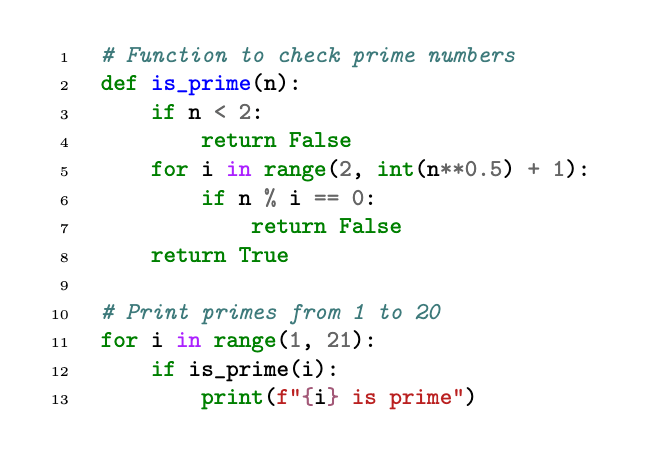
Sometimes you want even more colors and accurate syntax highlighting for almost any programming language. That’s where minted really shines.
It uses Python’s Pygments library and gives modern highlighting styles.
\begin{minted}[bgcolor=black!5, fontsize=\small, linenos, frame=lines]{python}
........
........
\end{minted}
-
bgcolor=black!5Adds a light gray background to the code block.
-
linenosDisplays line numbers inside the code block.
-
frame=linesDraws horizontal lines above and below the code block.
-
{python}This argument tells minted which programming language to highlight. Here, the code inside will be formatted as Python.
\documentclass{article}
\usepackage{minted}
\usepackage{xcolor}
\begin{document}

\begin{minted}[bgcolor=black!5, fontsize=\small, linenos, frame=single]{python}
# Function to check prime numbers
def is_prime(n):
    if n < 2:
        return False
    for i in range(2, int(n**0.5) + 1):
        if n % i == 0:
            return False
    return True

# Print primes from 1 to 20
for i in range(1, 21):
    if is_prime(i):
        print(f"{i} is prime")
\end{minted}

\end{document}
Tcolorbox with Listings or Minted
When plain code blocks are not enough. You may want your code inside a colorful box with a title, perfect for books or presentations. This is where tcolorbox helps, often combined with listings or minted.
\begin{tcolorbox}[title=Python Example, colback=black!5, colframe=blue, coltitle=white]
 \begin{minted}{python}
   .........
   .........
\end{minted}
\end{tcolorbox}
-
\begin{tcolorbox}...The
tcolorboxenvironment makes a colored box that can hold text or code. Options let you set a title, background color, border color, and title text color. -
title=Python ExampleShows a title at the top of the box with the text Python Example.
-
colback=black!5Sets the background color of the box to a very light gray.
-
colframe=oliveGives the box a olive border.
-
coltitle=whiteMakes the title text white.
\documentclass{article}
\usepackage{tcolorbox}
\usepackage{minted}
\usepackage{xcolor}

% minted needs -shell-escape when compiling with pdflatex
\tcbuselibrary{listings}

\begin{document}

\begin{tcolorbox}[title=Python Example, colframe=olive, coltitle=white]

\begin{minted}[bgcolor=black!5, fontsize=\small]{python}
# Function to calculate factorial
def factorial(n):
    if n == 0 or n == 1:
        return 1
    return n * factorial(n-1)

# Print factorials from 1 to 5
for i in range(1, 6):
    print(f"Factorial of {i} is {factorial(i)}")
\end{minted}

\end{tcolorbox}

\end{document}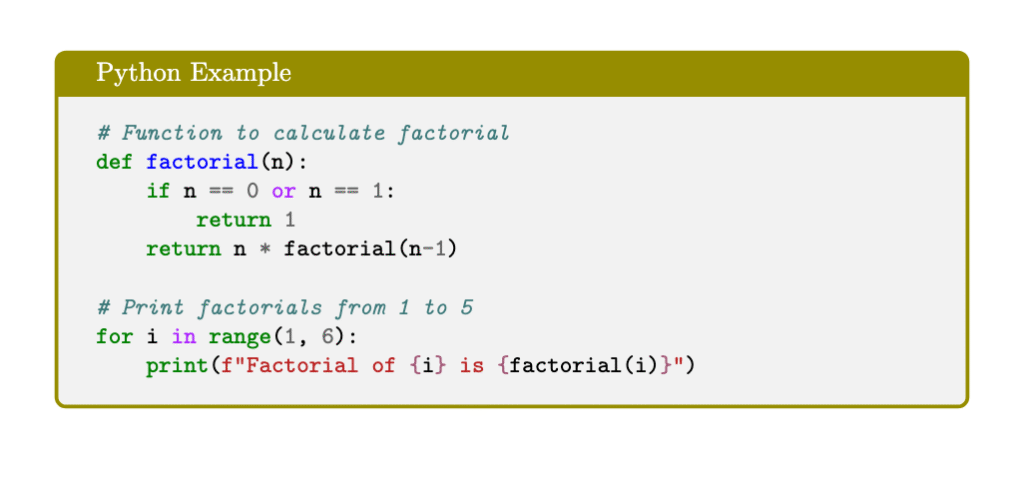


Jidan
LaTeX enthusiast and physics educator who enjoys explaining mathematical typesetting and scientific writing in a simple way. Writes tutorials to help students and beginners understand LaTeX more easily.