

Sometimes while writing a LaTeX document, you may want to add a checkmark (✓) to show a correct answer or completed task.
Many users try to use the command \checkmark directly, but LaTeX often returns an error like:
Undefined control sequence \checkmark
This happens because LaTeX does not include the checkmark command by default. To use this symbol, you need to load an external package that provides the command.
In this guide, we will see the different ways to add a checkmark symbol easily in a LaTeX document.
Table of Contents
Basic Checkmark Command
The most common method is provided by the amssymb package, which includes many additional mathematical symbols.
\documentclass{article}
\usepackage{amssymb}

\begin{document}

Correct answer: $\checkmark$

\end{document}
The command \checkmark works in math mode, so it should be placed inside $ ... $ or \[ ... \].
This is the simplest and most widely used approach for displaying a tick mark in a document.
Checkmark Symbols from Different Packages
Several LaTeX packages provide their own version of a checkmark symbol. Each one produces a slightly different visual style.
| Package | Command |
|---|---|
| amsmath | \checkmark |
| MnSymbol | Same as |
| fdsymbol | Same as |
| boisik | Same as |
| bbding | \Checkmark |
| pifont | \ding{51} |
| arev | \ballotcheck |
| utfsym | \usym{1F5F8}
|
Depending on the package used, the appearance of the symbol may vary slightly.
\documentclass{article}
\usepackage{MnSymbol,utfsym,arev}
\begin{document}
   \[ \checkmark \]
   \[ \usym{1F5F8} \]
   \[ \ballotcheck \]
\end{document}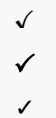
These commands generate different styles of tick marks.
Creating Bold or Heavy Checkmarks
In some documents, a thicker symbol may be preferable, especially in tables or presentations. A few packages offer heavier versions of the tick mark.
\documentclass{article}
\usepackage{stix,bbding,pifont,utfsym,fontawesome}
\begin{document}
   % Math mode commands
   $ \checkmark $\\[6pt]
   $ \usym{2713}, \usym{2714} $\\[6pt]
   % Text mode commands
    \CheckmarkBold \\[6pt]
    \ding{52} \\[6pt]
    \faCheck
\end{document}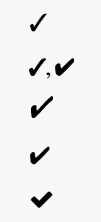
Each command produces a slightly different style, allowing you to choose one that matches your document formatting.
Using Checkmarks in Tables
Tick marks are often used in comparison tables to indicate available features or correct answers.
\documentclass{article}
\usepackage{amssymb}

\begin{document}

\begin{tabular}{c c}
Feature & Available \\
\hline
Option A & $\checkmark$ \\
Option B & $\checkmark$ \\
Option C & --- \\
\end{tabular}

\end{document}
This approach is commonly used in academic papers, reports, and documentation tables.
Using Unicode Symbols
If you are using modern engines like XeLaTeX or LuaLaTeX, Unicode symbols can also be inserted.
\documentclass{article}
\usepackage{utfsym}

\begin{document}

$\usym{2713}$

$\usym{2714}$

\end{document}
These codes represent Unicode checkmarks and may appear slightly different depending on the font.
Conclusion
The amssymb package offers the most common solution, while other packages provide alternative styles such as bold or Unicode tick marks.
Depending on the design of your document, you can choose the version that best fits your formatting needs.


Jidan
LaTeX enthusiast and physics educator who enjoys explaining mathematical typesetting and scientific writing in a simple way. Writes tutorials to help students and beginners understand LaTeX more easily.