

When you show programming code in a LaTeX document, readers often need a short explanation of what the code does.
A caption solves this problem because it adds a title and automatic numbering to the code block.
Table of Contents
- Load the listings package before using code listings
- Add a caption to a code listing in LaTeX
- Place the caption below the listing
- Set caption position globally for all listings
- Customize listing caption remove numbering and change label format
- Change label from Listing to Code
- Change separator from colon to dots
- Remove both label and numbering
- Conclusion
Load the listings package before using code listings
LaTeX does not support formatted code listings by default. Because of this, you must load the listings package first. This package provides the lstlisting environment which is designed for displaying programming code.
\documentclass{article}
\usepackage[T1]{fontenc} % Correct Quote Display
\usepackage{listings}

\begin{document}

\begin{lstlisting}
# Calculate squares of numbers
numbers = [1, 2, 3, 4, 5]

for n in numbers:
    square = n * n
    print("Square of", n, "is", square)
\end{lstlisting}

\end{document}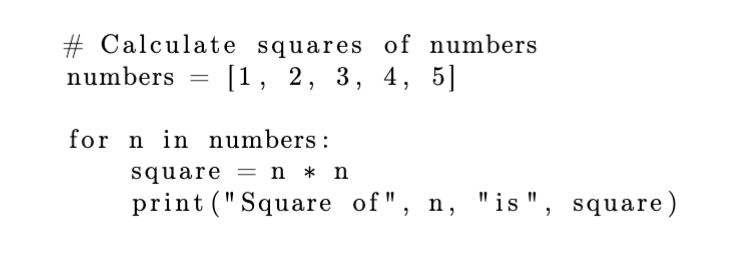
Add a caption to a code listing in LaTeX
A caption helps readers understand the purpose of a code example. In addition, LaTeX automatically numbers each listing when it is used.
To attach it, you simply use the caption option inside the lstlisting environment.
\begin{lstlisting}[caption={simple text}]
...
\end{lstlisting}
This option adds a title to the listing. It also enables automatic numbering such as Listing 1, Listing 2, and so on.
\documentclass{article}
\usepackage{listings}
\begin{document}

Below is a simple Python program.

\begin{lstlisting}[caption={Check Even or Odd Number}]
# Check if number is even or odd
num = 7

if num % 2 == 0:
    print("Even number")
else:
    print("Odd number")
\end{lstlisting}

\end{document}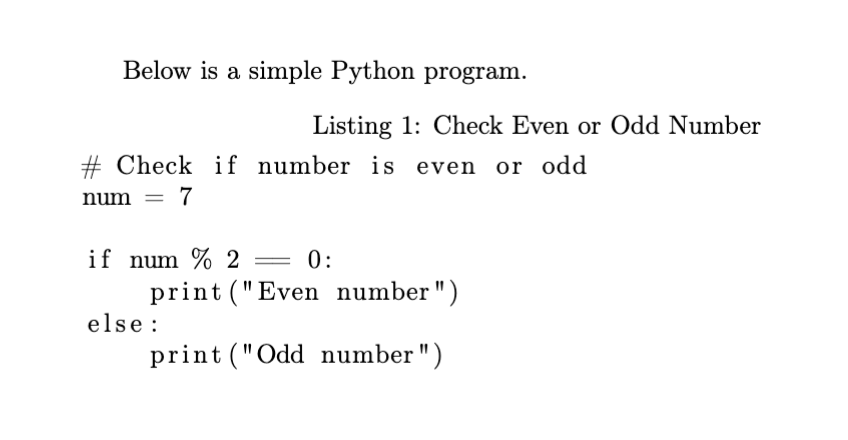
Place the caption below the listing
By default, the caption appears above the code. However, some documents look cleaner when it appears under the listing.
In that situation, you can use the captionpos=b option.
\begin{lstlisting}[caption={simple text}, captionpos=b]
...
\end{lstlisting}
The letter b means bottom. Therefore, the text will appear below the code.
\documentclass{article}
\usepackage[T1]{fontenc} % Correct Quote Display
\usepackage{listings}
\begin{document}

\begin{lstlisting}[caption={Factorial Function in Python}, captionpos=b]
# Function to calculate factorial
def factorial(n):
    if n == 0:
        return 1
    else:
        return n * factorial(n-1)

print(factorial(5))
\end{lstlisting}

\end{document}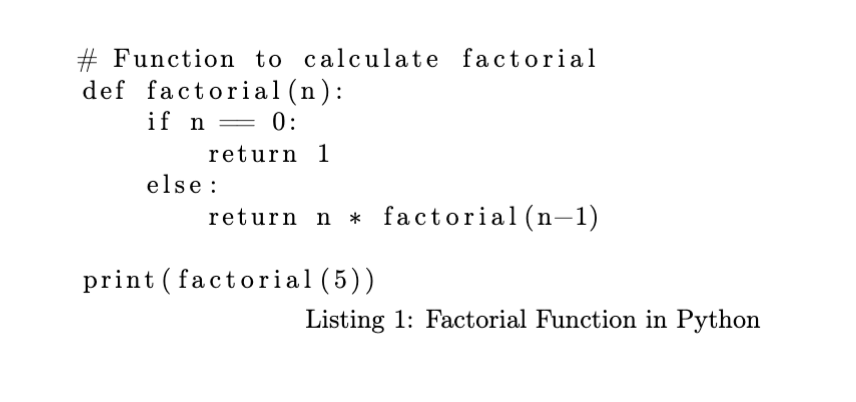
Set caption position globally for all listings
If your document contains many code listings, repeating the same caption position option can be inconvenient. Therefore, you can set a global configuration using \lstset.
\lstset{captionpos=b}
\documentclass{article}
\usepackage{listings,lipsum}
\usepackage[T1]{fontenc} % Correct Quote Display

\lstset{
  basicstyle=\ttfamily,   % sets the font of the code to typewriter (monospace style)
  captionpos=b,           % places the caption below the code listing
  aboveskip=.5cm,         % adds vertical space above the code block
  belowskip=.5cm          % adds vertical space below the code block
}
\begin{document}

\lipsum[1][1-4]

\begin{lstlisting}[caption={Addition in C}]
#include

int main() {
    int a = 5, b = 3;
    printf("Sum = %d\n", a + b);
    return 0;
}
\end{lstlisting}

\lipsum[2][1-4]

\begin{lstlisting}[caption={Even or Odd Check}]
#include

int main() {
    int num = 4;

    if (num % 2 == 0)
        printf("Even\n");
    else
        printf("Odd\n");

    return 0;
}
\end{lstlisting}

\lipsum[3][1-4]

\end{document} 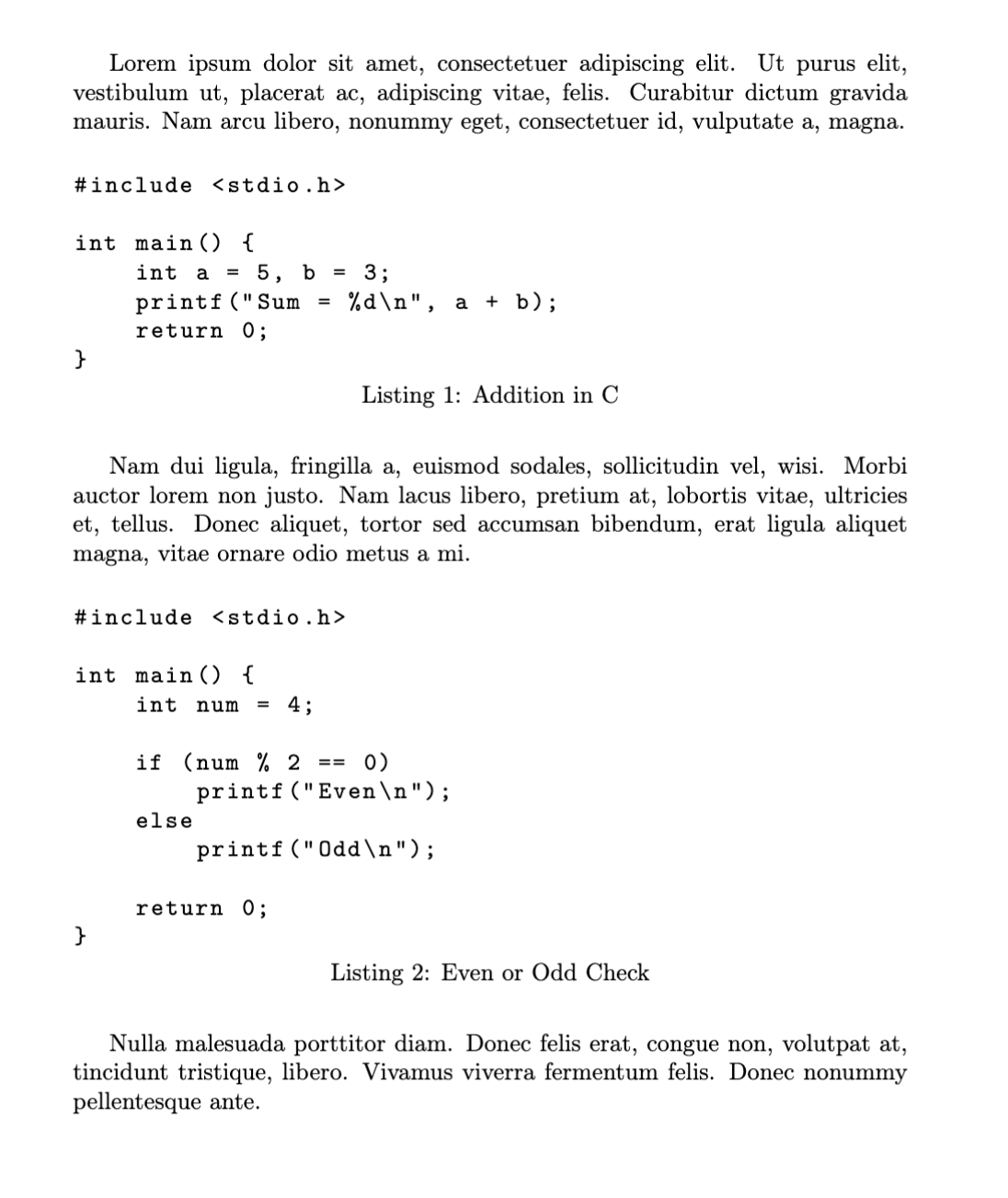
Customize listing caption remove numbering and change label format
In many cases, default labels like Listing 1 may not fit your document style. Therefore, you can either remove the numbering or rename the label to something like Code 1, Code 2.
Change label from Listing to Code
If you do not want to remove numbering, but instead rename it.
\renewcommand{\lstlistingname}{Code} % Changes "Listing" to "Code" (e.g., Code 1, Code 2)
\documentclass{article}
\usepackage{listings}

\renewcommand{\lstlistingname}{Code}

\begin{document}

\begin{lstlisting}[caption={Example Program}]
print("Hello World")
\end{lstlisting}

\end{document}
Below are two useful methods to achieve this.
Change separator from colon to dots
Sometimes you want captions like 1. Example Program instead of Listing 1: Example Program, you need to modify both the label name and separator.
\documentclass{article}
\usepackage{listings}

\renewcommand{\lstlistingname}{} % Removes the "Listing" word

\DeclareCaptionLabelSeparator{dot}{. } % Defines dot (.) as separator instead of colon

\captionsetup[lstlisting]{
  labelsep=dot % Applies the dot separator to listing.
}

\begin{document}

\begin{lstlisting}[caption={Sum of First N Numbers}[
n = 5
sum = n * (n + 1) // 2
\end{lstlisting}

\begin{lstlisting}[caption={Simple Function Example}]
def square(x):
    return x * x
\end{lstlisting}

\end{document}
Remove both label and numbering
In cases where you need to completely remove both the label and numbering, this approach works effectively.
\usepackage{caption} % Enables advanced formatting control
\captionsetup[lstlisting]{labelformat=empty} % Removes both label text and numbering from listings
\documentclass{article}
\usepackage{listings}
\usepackage{caption}

\captionsetup[lstlisting]{labelformat=empty}

\begin{document}

\begin{lstlisting}[caption={Clean text Without Number}]
print("Hello World")
\end{lstlisting}

\end{document}
Conclusion
Captions play a key role in making LaTeX code listings more informative and organized. By customizing their position, labels, and numbering, you can significantly improve how your code is presented and understood.


Jidan
LaTeX enthusiast and physics educator who enjoys explaining mathematical typesetting and scientific writing in a simple way. Writes tutorials to help students and beginners understand LaTeX more easily.