

Boxes in LaTeX are very useful for grouping content and treating it as a single character.
This tutorial organizes all single-line box commands with explanation and examples.
fbox Command
The \fbox command is the simplest way to create a framed box. It creates a visible box around the given text with width equal to the text content.
\fbox{text}
\fbox- This command makes a rectangular frame around the text provided in braces. The box width depends on the content.
\documentclass{article}
\begin{document}
  \fbox{Lorem Ipsum has been the industry's standard dummy text}
\end{document}
Output :

framebox Command
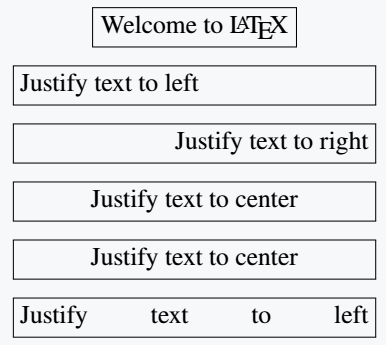
The \framebox command allows you to define the width of the box and control text alignment inside it. This is more flexible than \fbox.
\framebox[width][position]{text}
width- This optional argument defines the width of the box. It can be a fixed dimension or relative measure.
position- This optional argument controls the alignment of text within the box. Options are l (left), r (right), c (center), or s (stretch).
\documentclass{article}
\begin{document}
     \framebox{Welcome to \LaTeX{}} \\[5pt]
     \framebox[5cm][l]{Justify text to left} \\[5pt]
     \framebox[5cm][r]{Justify text to right} \\[5pt]
     \framebox[5cm]{Justify text to center} \\[5pt]
     \framebox[5cm][c]{Justify text to center} \\[5pt]
     \framebox[5cm][s]{Justify text to left}
\end{document}
Output :
mbox Command
The \mbox command creates an invisible box with the same width as the text. It is often used to keep text unbreakable without showing any border.
\mbox{text}
\mbox- This command creates a horizontal box without a frame. It is useful for preventing line breaks within the enclosed text.
\documentclass{article}
\begin{document}
  \mbox{Lorem Ipsum has been the industry's standard dummy text}
\end{document}
Output :

makebox Command
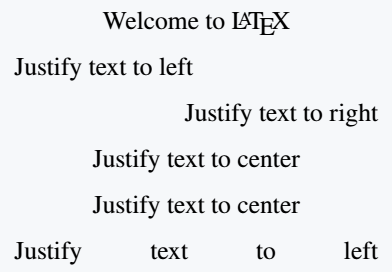
The \makebox command is similar to \framebox but creates an invisible box. It also accepts width and position as optional arguments.
\makebox[width][position]{text}
width- Defines the box width. The text will be adjusted within this size.
position- Defines alignment inside the box (left, right, center, or stretch).
\documentclass{article}
\begin{document}
    \makebox{Welcome to \LaTeX{}} \\[5pt]
    \makebox[5cm][l]{Justify text to left} \\[5pt]
    \makebox[5cm][r]{Justify text to right} \\[5pt]
    \makebox[5cm]{Justify text to center} \\[5pt]
    \makebox[5cm][c]{Justify text to center} \\[5pt]
    \makebox[5cm][s]{Justify text to left}
\end{document}
Output :
Natural Dimension Parameters
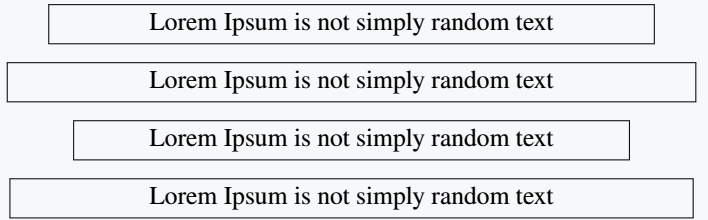
LaTeX allows box width specification relative to natural dimensions like \width, \height, \depth, and \totalheight.
\width- Represents the natural width of the content inside the box.
\height- Specifies the height of the box based on the text dimension.
\depth- Refers to the depth of the box below the baseline.
\totalheight- This is equal to
\height+\depth. Useful for proportional scaling.
\documentclass{article}
\begin{document}
  \framebox[1.5\width]{Lorem Ipsum is not simply random text} \\[5pt]
  \framebox[40\height]{Lorem Ipsum is not simply random text} \\[5pt]
  \framebox[100\depth]{Lorem Ipsum is not simply random text}\\[5pt]
  \framebox[30\totalheight]{Lorem Ipsum is not simply random text}
\end{document}
Output :
Styling Boxes
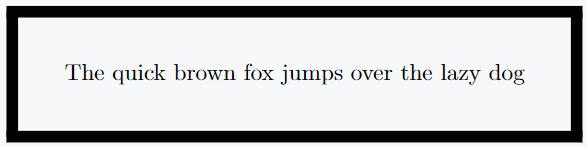
Frame styling is controlled using two parameters:
\fboxrulecontrols the border thickness.\fboxsepdefines spacing between text and frame.
\documentclass{article}
\usepackage{amsmath}
\begin{document}
  \setlength{\fboxrule}{0.5em}
  \setlength{\fboxsep}{2em}
  \fbox{The quick brown fox jumps over the lazy dog}
\end{document}
Output :
Fancybox Package
The fancybox package extends box functionality by providing advanced styles such as shadow, double, and oval boxes.
\shadowbox{Sample Text}Additional control is provided by \shadowsize for shadow width, \cornersize for rounded corners, and other parameters for nested frames.
Examples include \shadowbox, \doublebox, \ovalbox, and \Ovalbox. (See full code in outputs above.)
Shadow Package
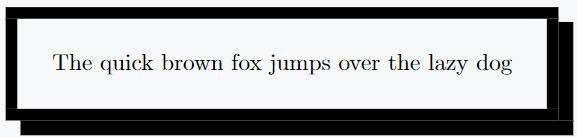
The shadow package provides \shabox, which works like \fbox but adds shadow on the bottom and right. Parameters include \sboxrule, \sboxsep, and \sdim.
\documentclass{article}
\usepackage{amsmath}
\usepackage{shadow}
\begin{document}
  \setlength{\sboxrule}{0.5em}
  \setlength{\sboxsep}{1.5em}
  \setlength{\sdim}{7pt}
  \shabox{The quick brown fox jumps over the lazy dog}
\end{document}
Output :
Nesting Boxes
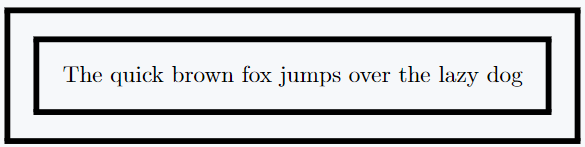
Boxes can be nested without error. You can put one box inside another to create layered effects.
\documentclass{article}
\usepackage{amsmath}
\begin{document}
  \setlength{\fboxrule}{0.25em}
  \setlength{\fboxsep}{1em}
  \fbox{\fbox{The quick brown fox jumps over the lazy dog}}
\end{document}
Output :
Best Practice
For simple framed text, use \fbox.
If you need size or alignment control, go for \framebox or \makebox.
For stylish results, load fancybox or shadow.
Always define \fboxrule and \fboxsep in the preamble if you want consistent styling throughout your document.


Jidan
LaTeX enthusiast and physics educator who enjoys explaining mathematical typesetting and scientific writing in a simple way. Writes tutorials to help students and beginners understand LaTeX more easily.